목적
- QEMU를 이용한 Ubuntu ARM 가상화
- Guest OS의 네트워크 설정 (Host와 동일한 네트워크 사용)
- Host와 Guest의 공유 디렉토리 설정
환경
- Host : Ubuntu 22.10 (x86_64)
- Guest : Ubuntu 22.04.2 (aarch64)
Ubuntu 이미지 및 QEMU 패키지 준비
아래 경로에서 Ubuntu ARM 이미지를 다운 받는다.
https://ubuntu.com/download/server/arm
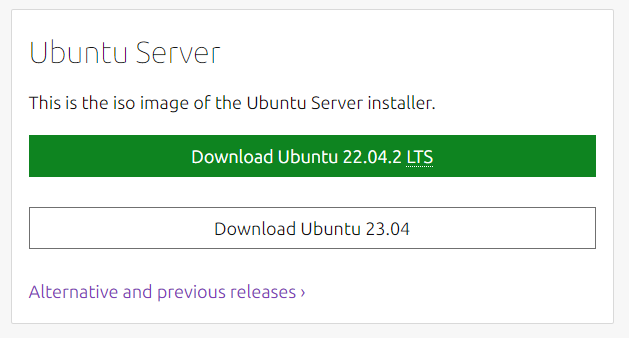
다운받은 iso 파일을 ubuntu.iso로 변경하여 저장한다.
$ mv ubuntu-22.04.2-live-server-arm64.iso ubuntu.iso
QEMU관련 패키지 설치한다.
$ apt-get install cloud-image-utils qemu-system-aarch64 qemu-efi
이미지 설치용 가상 디스크 준비
qcow2 Foramtting하여 storage를 만든다.
$ qemu-img create -f qcow2 qc2img 32G
Formatting 'qc2img', fmt=qcow2 cluster_size=65536 extended_l2=off compression_type=zlib size=34359738368 lazy_refcounts=off refcount_bits=16
UEFI Black Magic 준비
Qemu 설치파일에서 EFI설정을 복사해온다.
$ dd if=/dev/zero of=flash0.img bs=1M count=64
$ dd if=/usr/share/qemu-efi/QEMU_EFI.fd of=flash0.img conv=notrunc
$ cp /usr/share/AAVMF/AAVMF_CODE.fd flash1.img
Ubuntu(VM) 설치
아래의 명령어를 이용해서 가상 디스크에 Ubuntu를 설치한다.
$ qemu-system-aarch64 \
  -M virt \
  -cpu cortex-a57 \
  -m 4096 \
  -nographic \
  -smp 4 \
  -drive "if=none,file=ubuntu.iso,id=hd0" \
  -device virtio-blk-device,drive=hd0 \
  -drive if=pflash,file=flash0.img,format=raw \
  -drive if=pflash,file=flash1.img,format=raw \
  -drive if=virtio,file=qc2img,cache=none \
  -device e1000,netdev=mynet0,mac=52:55:00:d1:55:01 \
  -netdev user,id=mynet0 \
;
만약에 20.04 버전을 설치 시, Network를 비활성화 한다.
현재 Ubuntu 20.04를 가상머신에 설치하는 경우 Network 활성화 상태에서 Bug가 존재
https://stackoverflow.com/questions/67457987/ubuntu-server-installation-stops-at-curtin-command-in-target

한참을 기다리면 설치가 완료된다.
네트워크 설정을 추가적으로 진행할것이므로, 설치 완료되면 Ctrl+A → X 명령어로 QEMU 종료한다
아직 네트워크 설정이 완료되지 않았지만, 설치 완료 후에는 아래의 명령어로 가상머신 실행 가능하다.
$ qemu-system-aarch64 \
  -M virt \
  -cpu cortex-a57 \
  -m 4096 \
  -nographic \
  -smp 4 \
  -drive if=pflash,file=flash0.img,format=raw \
  -drive if=pflash,file=flash1.img,format=raw \
  -drive if=virtio,file=qc2img,cache=none \
  -device e1000,netdev=mynet0,mac=52:55:00:d1:55:01 \
  -netdev user,id=mynet0 \
;
Host Bridge 네트워크 설정
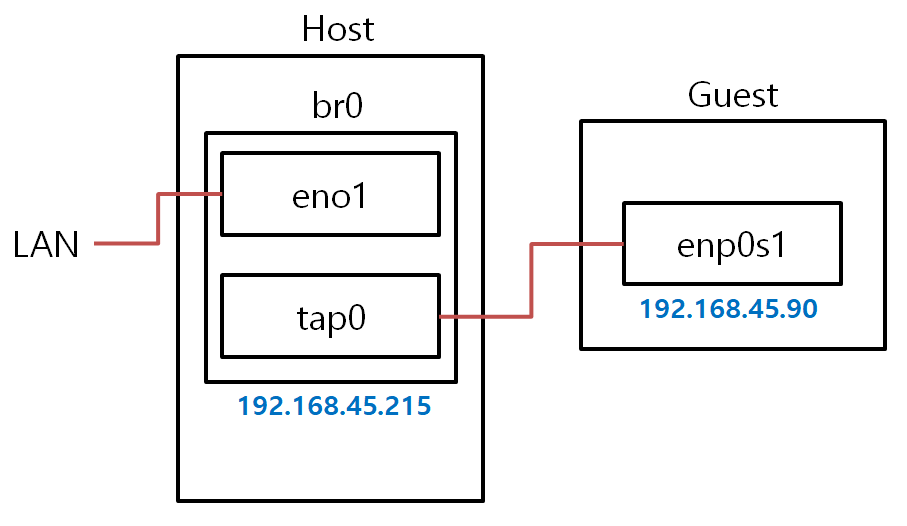
아래 그림과 같이, Bridge br0 만들고,
그 안에 LAN(eno1)와 tunnel(tap0)를 만든다.
그리고 Guest(enp0s1)를 tap0로 연결한다.
이렇게 하면, Host와 Guest가 동일한 네트워크에 연결되어 사용할 수 있다.
Host의 netplan 설정파일 " /etc/netplan/01-network-manager-all.yaml " 아래와 같이 수정한다.
# File : /etc/netplan/01-network-manager-all.yaml

# Let NetworkManager manage all devices on this system
network:
  version: 2
  renderer: NetworkManager
  ethernets:
    eno1:
      dhcp4: false
      dhcp6: false
  bridges:
    br0:
      interfaces: [eno1]
      dhcp4: false
      addresses: [192.168.45.215/24]
      routes:
        - to: default
          via: 192.168.45.1
      nameservers:
        addresses: [8.8.8.8]
      dhcp6: false
Tip을 적자면,
yamlint 사용해서 기본적인 문법 검사 가능하다.
$ apt install yamllint
$ yamllint 01-network-manager-all.yaml
netplan 설정파일 작성 후, 아래의 명령어로 적용한다.
$ netplan apply
Host Tap 네트워크 설정
Host에서 Tap 설정을 위한 Script를 부팅시에 자동으로 실행하도록 등록한다.
" /usr/bin/tap0_setup.sh " Script를 새로 생성한다.
#!/bin/sh

# File : /usr/bin/tap0_setup.sh
ip tuntap add name tap0 mode tap
ip link set up dev tap0
ip link set tap0 master br0
실행 권한을 부여해주고,
$ chmod +x /usr/bin/tap0_setup.sh
Service 파일 " /lib/systemd/system/tap0_setup.service "을 생성한다.
# File : /lib/systemd/system/tap0_setup.service

[Unit]
Description=TAP Interfaces
After=network-online.target

[Service]
Type=oneshot
User=root
ExecStart=/usr/bin/tap0_setup.sh

[Install]
WantedBy=multi-user.target
새로만든 Script 및 Service를 자동 실행되도록 등록한다.
$ systemctl enable tap0_setup.service
이제 Host를 재부팅 한다.
Guest 네트워크 설정
아래의 명령어로 네트워크 설정이 포함된 QEMU Ubuntu를 실행한다.
$ qemu-system-aarch64 \
  -M virt \
  -cpu cortex-a57 \
  -m 4096 \
  -nographic \
  -smp 4 \
  -drive if=pflash,file=flash0.img,format=raw \
  -drive if=pflash,file=flash1.img,format=raw \
  -drive if=virtio,file=qc2img,cache=none \
  -netdev tap,id=mynet0,ifname=tap0,script=no,downscript=no \
  -device e1000,netdev=mynet0,mac=52:55:00:d1:55:01
;
Guest에서 Static IP설정을 추가한다. 마찬가지로 netplan 설정 파일 " /etc/netplan/00-installer-config.yaml "을 수정한다.
# File : /etc/netplan/00-installer-config.yaml

# This is the network config written by 'subiquity'
#network:
#  ethernets:
#    enp0s1:
#      dhcp4: true
#  version: 2

network:
  ethernets:
    enp0s1:
      dhcp4: false
      addresses:
        - 192.168.45.90/24
      routes:
        - to: default
          via: 192.168.45.1
      nameservers:
        addresses: [8.8.8.8, 8.8.4.4]
  version: 2
수정한 설정파일을 적용한다.
$ netplan apply
여기까지 수행 했으면, 같은 네트워크에 접속되어 있는 기기로 Guest에 ssh 접속이 가능하다.
$ ssh root@192.168.45.90
또한, Guest가 외부 network에 접속 가능하다.$ ping www.naver.com PING e6030.a.akamaiedge.net (104.75.40.20) 56(84) bytes of data. 64 bytes from a104-75-40-20.deploy.static.akamaitechnologies.com (104.75.40.20): icmp_seq=1 ttl=51 time=6.12 ms 64 bytes from a104-75-40-20.deploy.static.akamaitechnologies.com (104.75.40.20): icmp_seq=2 ttl=51 time=6.16 ms 64 bytes from a104-75-40-20.deploy.static.akamaitechnologies.com (104.75.40.20): icmp_seq=3 ttl=51 time=4.64 ms
NFS 공유 폴더
Guest와 Host 사이에 공유 폴더를 설정한다.
먼저 Host에서 NFS 사용을 위한 패키지를 설치하고,
공유용 폴더를 하나 만든다.
$ apt install nfs-kernel-server
$ mkdir /myshare
공유 가능하도록 " /etc/exports "파일을 수정해서 설정한다.
입력할 내용 : [경로] [Guest IP]([속성])
/myshare 192.168.45.90(rw,sync,no_subtree_check)
수정한 내용을 적용한다.
$ exportfs -a
이제, Guest에서 공유폴더를 마운트해서 접근 가능하다.
$ mkdir /myshare
$ mount -t nfs 192.168.45.215:/myshare /myshare
출처
Is there any prebuilt QEMU Ubuntu image(32bit) online?
I am playing with QEMU. Here I found some prebuilt OS images: http://docs.openstack.org/trunk/openstack-compute/admin/content/starting-images.html But they are all meant for a 64-bit system while...
askubuntu.com
https://sjp38.github.io/ko/post/qemu_setup_on_ubuntu/
Ubuntu 환경에서 QEMU 빌드 / 설치 / 사용하는 법 | hacklog
Ubuntu 에서 QEMU 를 빌드, 설치, 사용하는 법을 설명합니다. 기본적으로 http://wiki.qemu.org/Hosts/Linux 문서를 참고했습니다. 테스트는 Ubuntu 18.04 머신 위에서 진행되었습니다. QEMU Build sudo apt install libglib
sjp38.github.io
https://gist.github.com/extremecoders-re/e8fd8a67a515fee0c873dcafc81d811c
Setting up Qemu with a tap interface
Setting up Qemu with a tap interface. GitHub Gist: instantly share code, notes, and snippets.
gist.github.com
https://elminster7.medium.com/rasp-pi-4-netplan-qemu-bridge-1-e8561eb85dcf
Rasp pi 4 + netplan + qemu + bridge (1)
Raspberry pi 4 Linux os Version : ubuntu 21.04
elminster7.medium.com
https://wiki.ubuntu.com/ARM64/QEMU
ARM64/QEMU - Ubuntu Wiki
Ubuntu/arm64 can run inside the QEMU emulator. You can either do this fully emulated (e.g. on an x86 host) or, accelerated w/ KVM if you have an arm64 host. This page describes how to do both. I've chosen to describe a UEFI-based system here so I can make
wiki.ubuntu.com
https://discourse.ubuntu.com/t/testing-ubuntu-core-with-qemu/24058
Testing Ubuntu Core with QEMU
You can test Ubuntu Core without specific hardware from within a virtual machine. To test Ubuntu Core with QEMU (https://www.qemu.org/) on Ubuntu, first install the qemu-kvm package and test it with kvm-ok (a utility that comes with the cpu-checker package
discourse.ubuntu.com
.
'Linux > VirtualMachine' 카테고리의 다른 글
| [QEMU] ARM64 Ubuntu - Custom Kernel (1) | 2024.02.05 |
|---|---|
| [QEMU][RaspberryPi] RPI 3B+ Emulation (arm64) (0) | 2024.02.05 |
| [QEMU][GDB] Kernel Debugging (arm64) (0) | 2024.02.05 |
| [QEMU][BusyBox] MainLine Kernel Emulation(arm64) (0) | 2024.02.05 |


